Woojer MAT User Manual
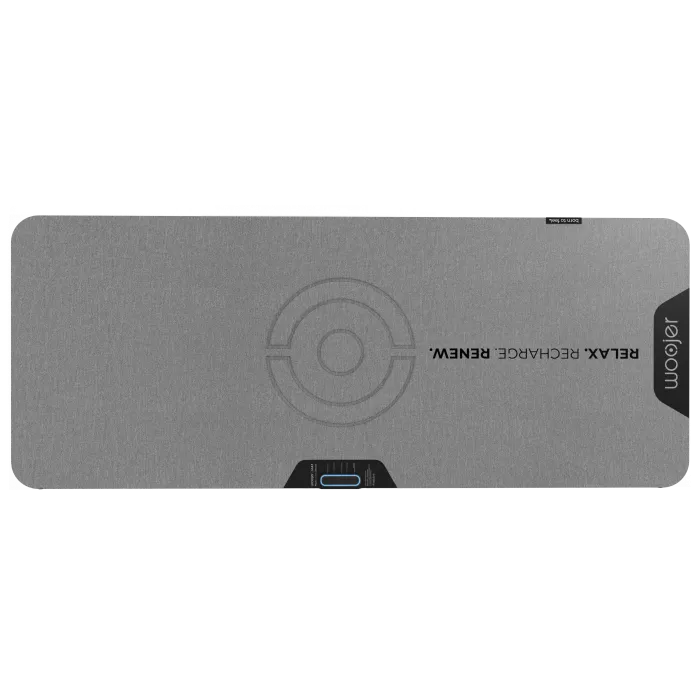
Get to Know Woojer MAT


Setting Up Your Woojer MAT
1. Place the Woojer MAT on a soft, supportive surface such as a bed or a sofa.
2. Do not use the MAT directly on hard floors or rigid furniture.
3. Connect the power supply to the Power Supply (USB-C) Port.
4. Connect your Woojer MAT to an audio source (mobile device, PC, or similar). This step is required.
5. Once connected, choose how you'd like to experience the MAT:
- With headphones (wired or Bluetooth)
- With external speakers (wired or Bluetooth)
- With precise, pure low frequencies on their own (without headphones or speakers)
Each option provides a distinct and immersive experience in its own way.
Tip: Try different setups and soundscapes/tracks to discover what feels best for you.
🔊 Connecting an Audio Source
There are several ways to connect an audio source.
Install and launch Woojer App


With the Woojer MAT powered off, long-press the Power button for 5 seconds until the input LED flashes red and blue.

On your source device, locate and pair with "Woojer MAT".

Connect one end of the cable to your audio source.
Connect the other end to the Woojer's Audio-in Port.

Connect one end of the cable to your audio source.
Connect the other end to the Woojer's Digital Input (USB-C) Port.
🎧 Connecting Headphones or Speakers
There are several ways to connect headphones or speakers to Woojer MAT.
Install and launch Woojer App


With the Woojer MAT powered on, long-press the Power button AND the Volume Up button for 5 seconds until the output LED flashes red and blue.
Set your headphones or speakers to pairing mode and place them near the Woojer MAT. Both devices will automatically connect within 30 seconds.

Connect your headphones or speakers using an audio cable.
One end connects to the Woojer's Headphones/Speakers Output Port and the other end to your headphones/speakers.
Using Woojer MAT
1. Turn On
Press and hold the power button for 3 seconds to turn on the Woojer MAT.
2. Get Ready
Lay down with your body centered on the MAT.
3. Relax
Play your content, close your eyes, and enjoy the relaxing effects of Woojer MAT.
4. Fine-Tune
Adjust volume and sensation levels using the control buttons or the Woojer App.
LED Behaviours
-
 Bluetooth audio source pairing mode: Input LED blinking red-blue
 -
 Bluetooth headphones/speakers pairing mode: Output LED blinking red-blue
 -
 Searching for audio source: Input LED running blue
 -
 Searching for Bluetooth headphones: Output LED running blue
 -
 Audio source connected: Input LED solid blue
 -
 Headphones connected: Output LED solid blue
- Power: USB-C PD 20 V / 100 W
- Haptic Freq Response: 1–250 Hz
- Audio Freq Response: 20–20 kHz
- Transducer: 6× Osci V2 TRX
- Transducer Impedance: 11Ω
- Audio Output: Aux 3.5mm TRRS, BT Audio A2DP
- Audio Input: Aux 3.5mm TRRS, USB-Stereo Audio, BT Audio A2DP
- Bluetooth: Bluetooth 5.0 Audio, BLE App Control and Update
- Headphones Amp THD: 0.03%
- Headphones Out S/N Ratio: 98 dB
- Keep the Woojer MAT and accessories device dry. Precipitation, humidity, and all types of liquids or moisture can contain minerals that will corrode electronic circuits.
- Do not store the device in hot areas. High temperatures can shorten the life of electronic devices, and warp or melt certain plastics.
- Do not store the device in cold areas. When the device returns to its normal temperature, moisture can form inside the device and damage electronic circuit boards.
- Do not attempt to open the device.
- Do not drop. Rough handling can break internal circuit boards and fine mechanics.
- Do not use harsh chemicals, cleaning solvents, or strong detergents to clean the device.
- If the device doesn't work properly, please contact our technical support team through our website.
- Pregnant women, individuals with special medical conditions, or anyone experiencing discomfort while using Woojer MAT should stop immediately and consult a doctor. Pregnant women should always obtain medical approval before use.
- Magnetic components: Woojer MAT contains magnets. If you have a pacemaker, implanted defibrillator, or any other medical device, do not use this product. Individuals with metal implants or other medical concerns should consult a doctor before use.
- Safe Listening: Extended listening at high volumes can damage your hearing. Experts recommend maintaining a moderate volume level.
- Temperature & overheating: If Woojer MAT becomes excessively warm during use, discontinue use and contact our technical support team. Do not operate Woojer MAT in extremely high or low temperatures.

Need help? Get more information at www.woojer.com/support

12 months from purchase. You can learn more about the warranty through this QR code. www.woojer.com/warranty
Federal Communications Commission Notice
This device complies with part 15 of the FCC rules.
Operation is subject to the following two conditions: (1) this device may not cause harmful interference, and (2) this device must accept any interference received, including interferences that may cause undesired operation.
Any changes or modifications not expressly approved by the party responsible for compliance could void the user's authority to operate the equipment.
Note
This equipment has been tested and found to comply with the limits for a Class B digital device, pursuant to part 15 of the FCC rules.
These limits are designed to provide reasonable protection against harmful interference in a residential installation. This equipment generates, uses, and can radiate radio frequency energy and, if not installed and used in accordance with the instructions, may cause harmful interference to radio communications.
However, there is no guarantee that interference will not occur in a particular installation. If this equipment does cause harmful interference to radio or television reception (which can be determined by turning the equipment off and on), the user is encouraged to try to correct the interference by one or more of the following measures:
- Reorient or relocate the receiving antenna.
- Increase the separation between the equipment and receiver.
- Connect the equipment into an outlet on a circuit different from that to which the receiver is connected.
- Consult the dealer or an experienced radio/TV technician for help.
The device has been evaluated to meet the general RF exposure requirement. The device can be used in portable exposure conditions without restriction.
Canada — Industry Canada (IC)
This radio transmitter has been approved by Industry Canada. This Class B digital apparatus complies with Canadian standard ICES-003. This device complies with Industry Canada licence exempt RSS standard(s).
Operation is subject to the following two conditions: (1) this device may not cause interference and (2) this device must accept any interference, including interference that may cause undesired operation of the device.
The device has been evaluated to meet the general RF exposure requirement. The device can be used in portable exposure conditions without restriction.
Bluetooth
The Woojer MAT qualified design listing was achieved in accordance with the Bluetooth qualification process as specified within the Bluetooth specifications.
CE Declaration of Conformity
We, Woojer Ltd., declare under our sole responsibility that this Woojer MAT product is in conformity with the standards and other normative documents.
©2025 — Woojer Ltd. All rights reserved.
The Woojer MAT packaging, logos, icons, "Ready. Play. Feel.", "Born to Feel", and "Haptifeels" are trademarks of Woojer Ltd., Woojer USA Inc. and their subsidiaries in the United States and other countries.
Visit www.woojer.com